Until now, configuring the box itself (network address, updates, restarting a service) meant opening an SSH session. The latest Calaos releases (calaos-server 4.8.0, web interface 4.2.0, calaos-container 1.9.1) bring these everyday tasks into the web interface, in a new Admin tab.
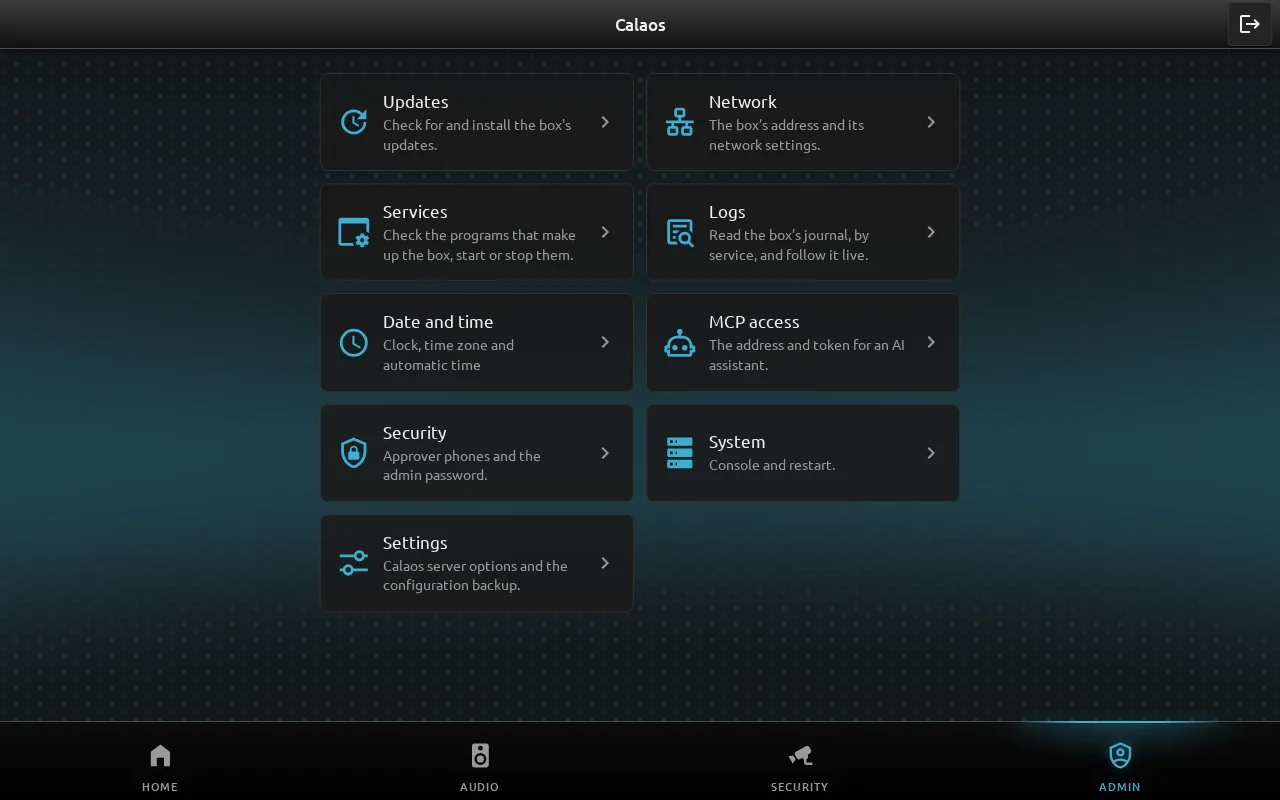
The tab is protected by an administration password. Once unlocked, it shows a home page with one card per topic.
Update the box
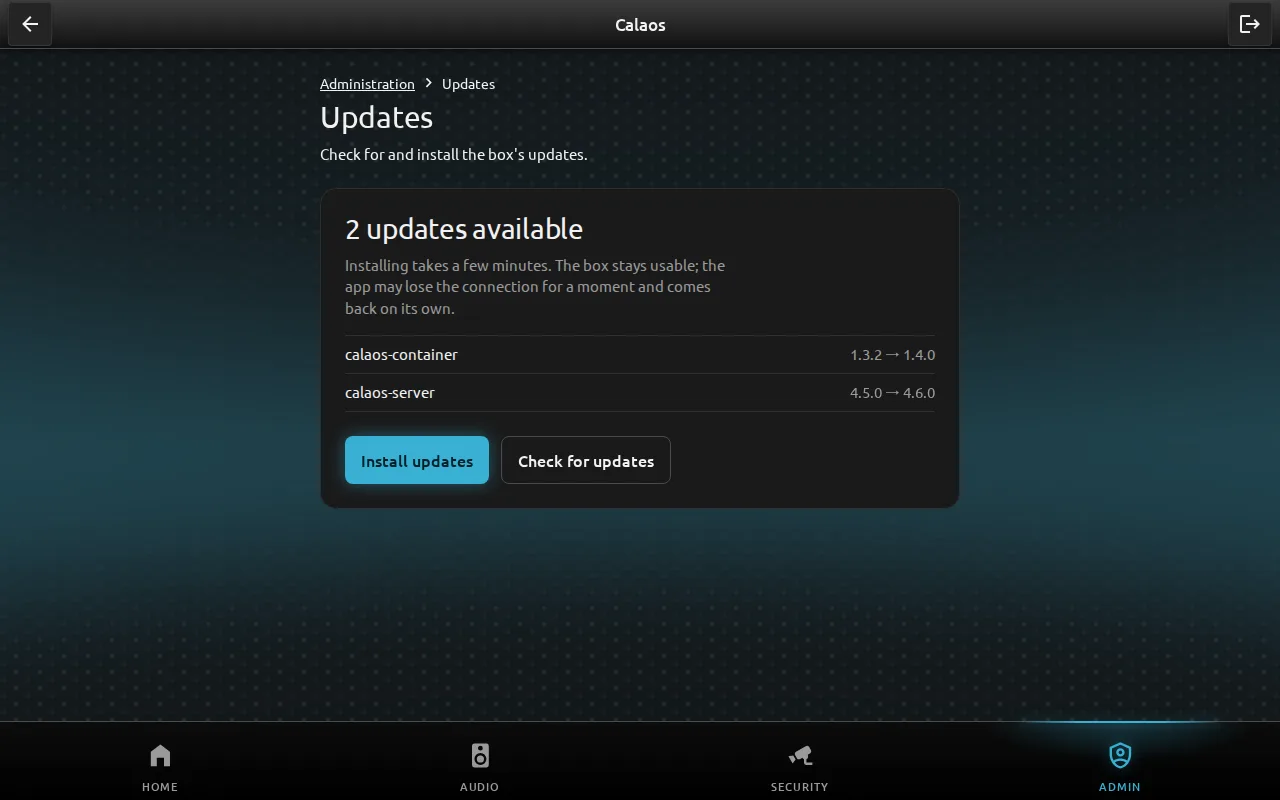
Why. See whether the box is up to date and install new versions without the command line.
- Open Admin, then Updates.
- Click Check for updates: the packages to update are listed with their current and new versions.
- Click Install updates. The install takes a few minutes; the box stays usable and the app reconnects by itself.
Change the network settings safely
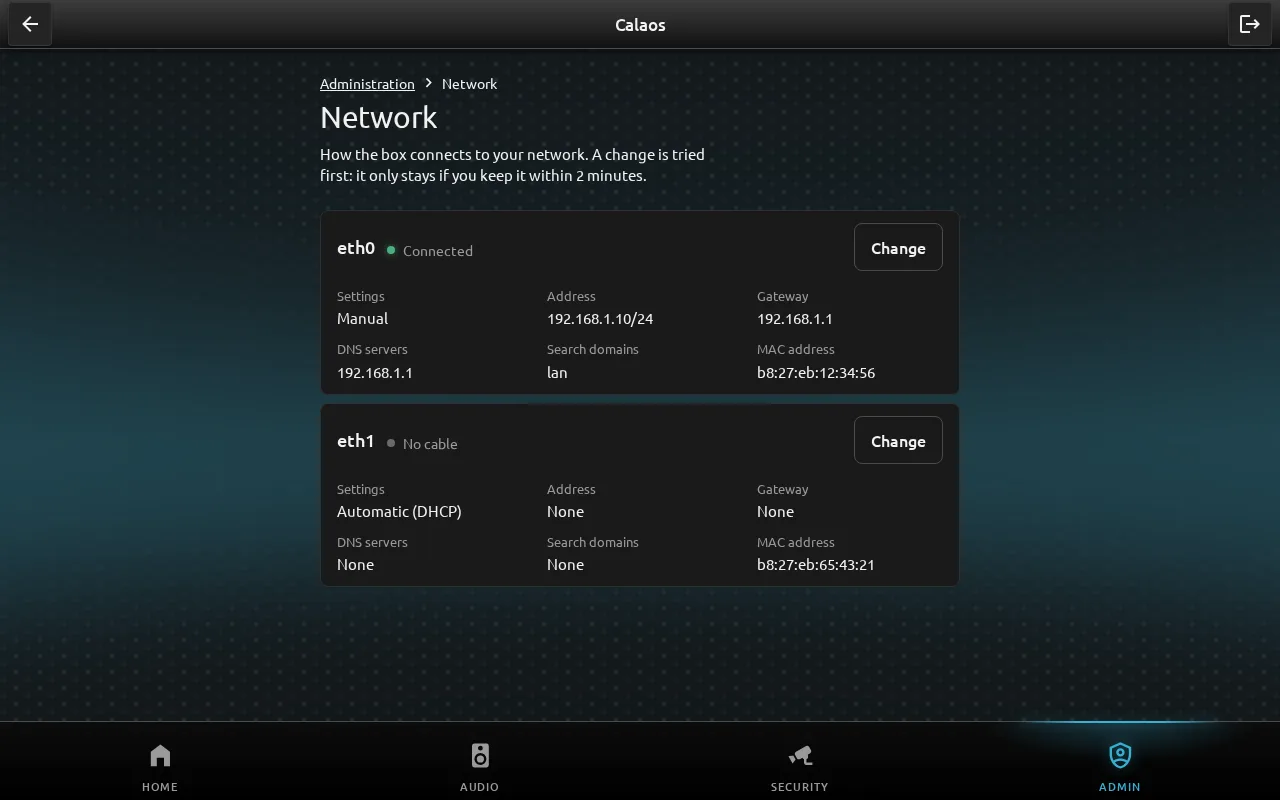
Why. Switching to a fixed address or changing the gateway is the kind of change that can lock you out of the box. Here a change is first tried: it only stays if you confirm it within two minutes. Otherwise the box goes back to the previous settings.
- Open Admin, then Network.
- Click Change next to the interface, then enter the address, gateway and DNS servers.
- Click Apply… and enter the code shown on an approver phone (add one first in Security), then Keep these settings from the new address.
Manage the box services
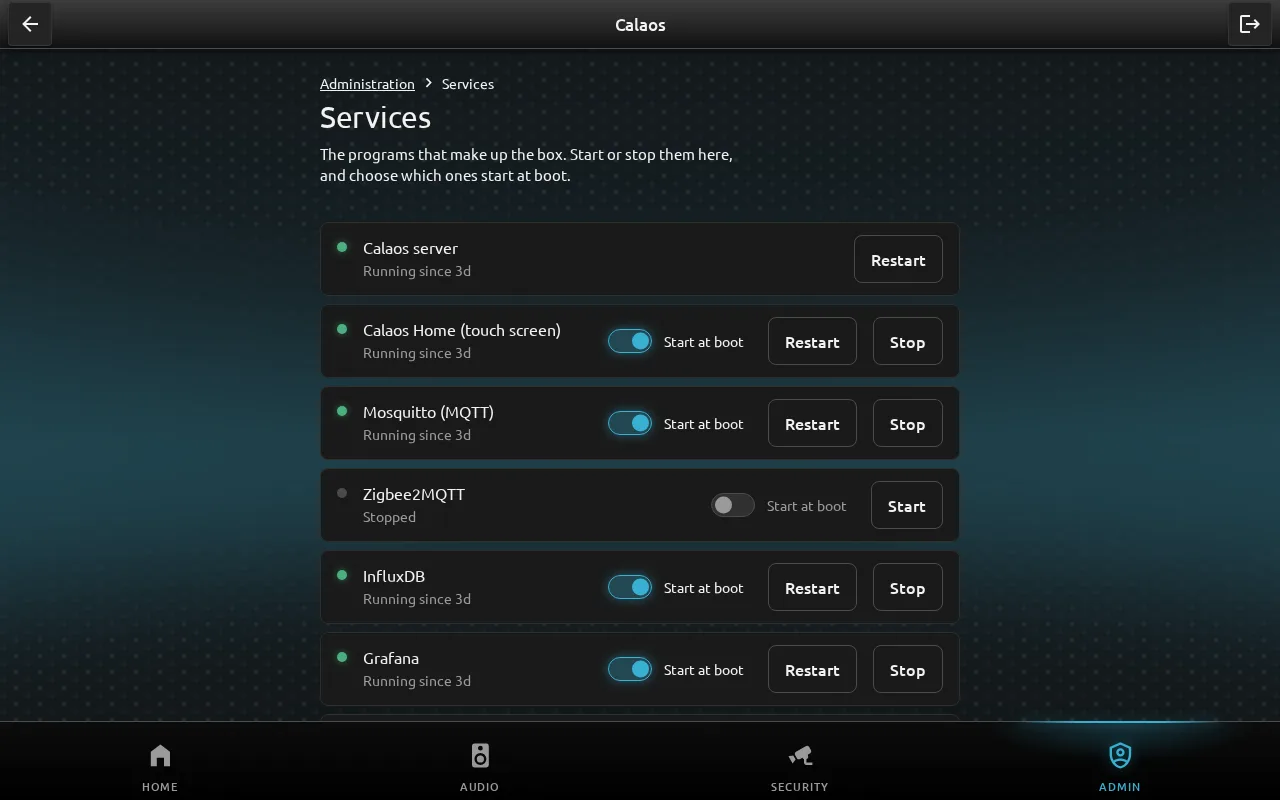
Why. The box runs several programs (Calaos server, touch screen, Mosquitto, Zigbee2MQTT, InfluxDB, Grafana…). You can see which ones are running, restart one that misbehaves, or choose which ones start with the box.
- Open Admin, then Services.
- Use Restart, Stop or Start on the service’s row.
- The Start at boot switch decides what runs at the next boot.
Read the logs
The Logs page shows the box journal service by service (Calaos server, Mosquitto, Zigbee2MQTT, SSH, network…). Pick the sources and the level of detail, follow new lines live with Follow, or download the result to attach to a support request. It is the first place to look when something does not work.
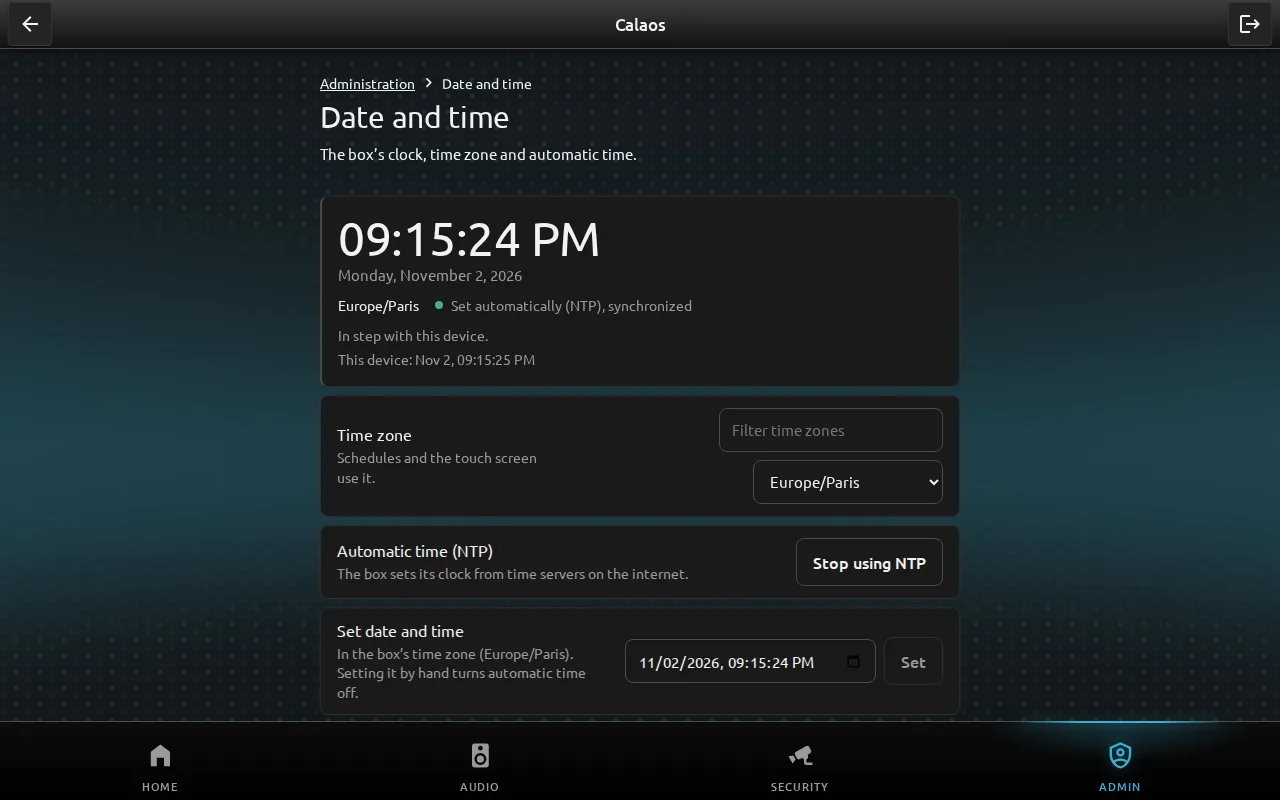
Set the date and time
Why. Scenario schedules and the touch screen rely on the box clock. It must be right, and in the right time zone.
- Open Admin, then Date and time.
- Check the time shown and its sync state.
- Pick the time zone from the list. If needed, turn off automatic sync (NTP) to set the time by hand.
Protect administration with your phone
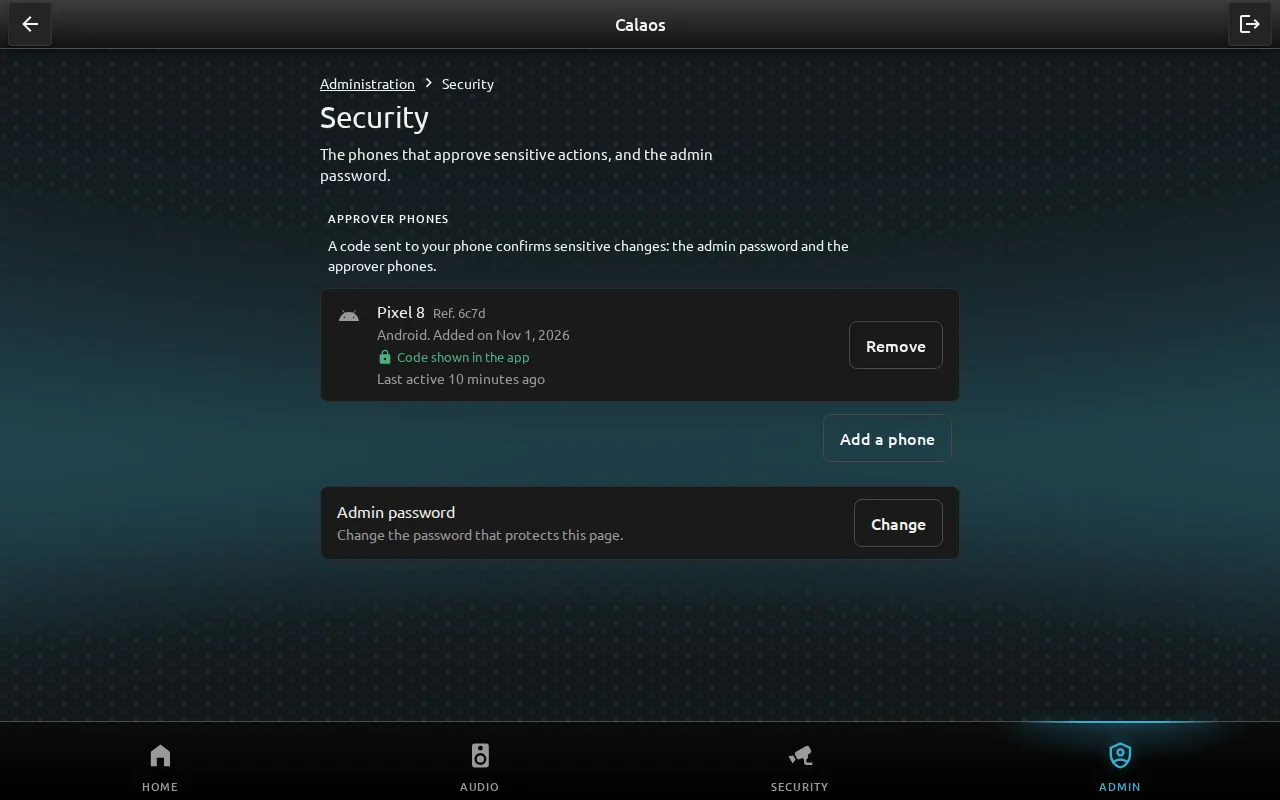
Why. Sensitive actions, such as changing the admin password, ask for a confirmation code. The code is shown in the Calaos app on the approver phones you chose, so knowing the password alone is not enough.
- Open Admin, then Security.
- Click Add a phone and follow the steps on that phone.
- To change the admin password, click Change and enter the code shown in the app.
Back up the configuration
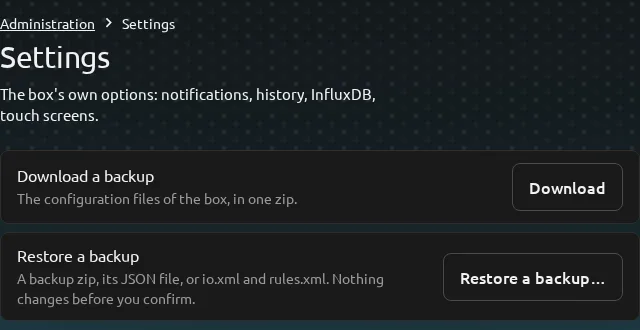
The Settings page lets you download a backup file of the box configuration and restore it (nothing changes until you confirm). The file contains passwords in clear text (cameras, MCP token…) and is not encrypted: keep it somewhere safe.
Confirm with a code on your phone
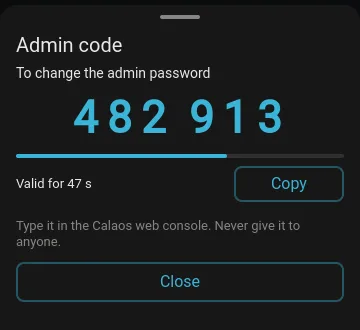
Why. This is two-factor authentication for administration. When you change the admin password from the browser, the box does not rely on the password alone: it asks for a code shown in the Calaos app on your iPhone or Android phone. With the current app, the code never appears in the text of the notification, and it expires after one minute.
- First register your phone as an approver (previous section).
- In the browser, start the sensitive action, for example Change the admin password.
- The phone receives a notification: open it and the app shows the code and the time left.
- Enter the code in the web console before the countdown ends. Do not share it with anyone.
On a phone the notification is the system’s own, which cannot be reproduced on a desktop. The screenshot therefore shows the app’s Admin code screen as rendered by the desktop build, with a made-up code.
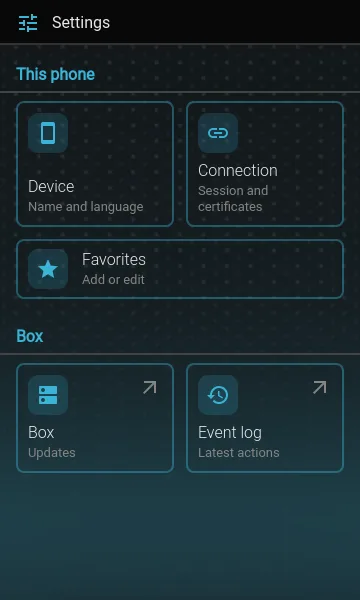
The mobile app Settings
Why. The Calaos phone app gets a Settings screen organised in two groups. “This phone”: the device name and language, the connection (session, certificates, fingerprint or Face ID unlock) and favourites. “Box”: box updates and the latest events.
- Open the app, then Settings.
- Tap a card to open its page.
- The cards in the Box group ask for the administration password, which is separate from your account password, and a secure (https) connection.
Update the box from your phone
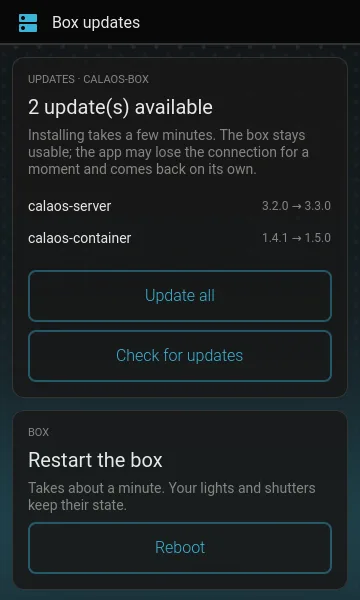
Why. Install box updates without opening the browser, for instance from the sofa. The app lists the available versions, before and after, like the web page.
- Open Settings, then Box, and unlock administration.
- Tap Check for updates if the list is out of date.
- Tap Update all. Installing takes a few minutes; the box stays usable and the app may lose the connection for a moment and come back on its own.
The same screen can restart the box. The screenshot shows a demo box.
Set the date and time on the Calaos Home screen
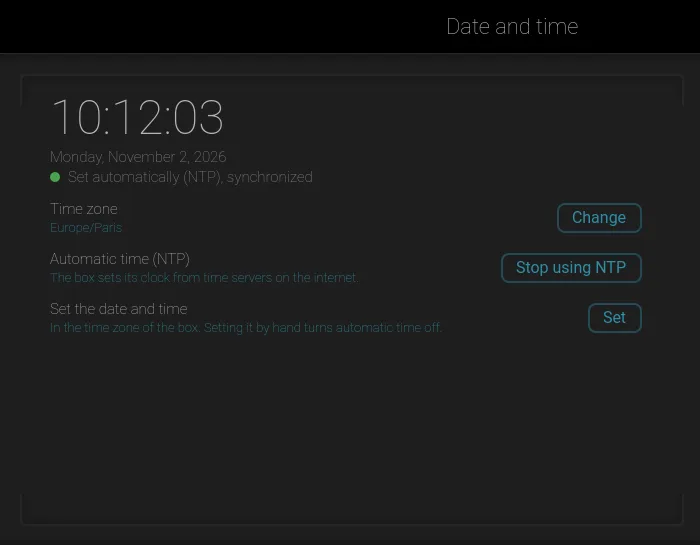
Why. If your box is driven by a Calaos Home touch screen, you can set the time zone, automatic time (NTP) or a date and time by hand there, with no keyboard or browser.
- On the screen, open the configuration panel, then the Date and time tile.
- Change sets the time zone.
- Stop using NTP turns automatic time off; Set then lets you enter the date and time. Setting it by hand turns automatic time off.
Also in there
- MCP access: the address and token to give an AI assistant so it can control the house, with a button to regenerate the token.
- System: a console and a box reboot.
Availability
These features are available in calaos-server 4.8.0, calaos-web-app 4.2.0 and calaos-container 1.9.1. The mobile app and Calaos Home screen changes are in calaos-home 4.5.0. The screenshots show a demo home. Feedback is welcome on the Discord.
Comments
Comments are hosted by GitHub Discussions, through giscus, and load only when you click: giscus.app and GitHub then receive your IP address and the address of the page. Commenting requires a GitHub account. Privacy details.